
Can't pay with Google Wallet
Check the correct card, standard card and NFC when Google Wallet does not respond in the store.
Updated 20 August 2026
Does nothing happen when you hold the phone against the terminal? Then the problem is usually the contact between the phone and the terminal. Does the terminal show that the payment has been rejected? Then it has read the card — go to The card was rejected.
When the terminal does not respond
- Unlock the phone. Use a code, fingerprint or facial recognition before holding it to the terminal.
- Choose the correct card. Open Google Wallet and check that the last four digits are the same as on the gift card in the Glede app.
- Set the Glede card as the default card. Then you avoid the phone trying to pay with another card.
- Check that the card is ready. You should see a blue wave icon and the text "Hold the device close to the reader".
- Remove a thick or magnetic cover. It may block the NFC connector.
- Turn off power saving mode. It can disable NFC on Android phones.
- Move the phone slowly. The NFC antenna is positioned differently from model to model. Try the upper part of the back and hold the phone still for a few seconds.
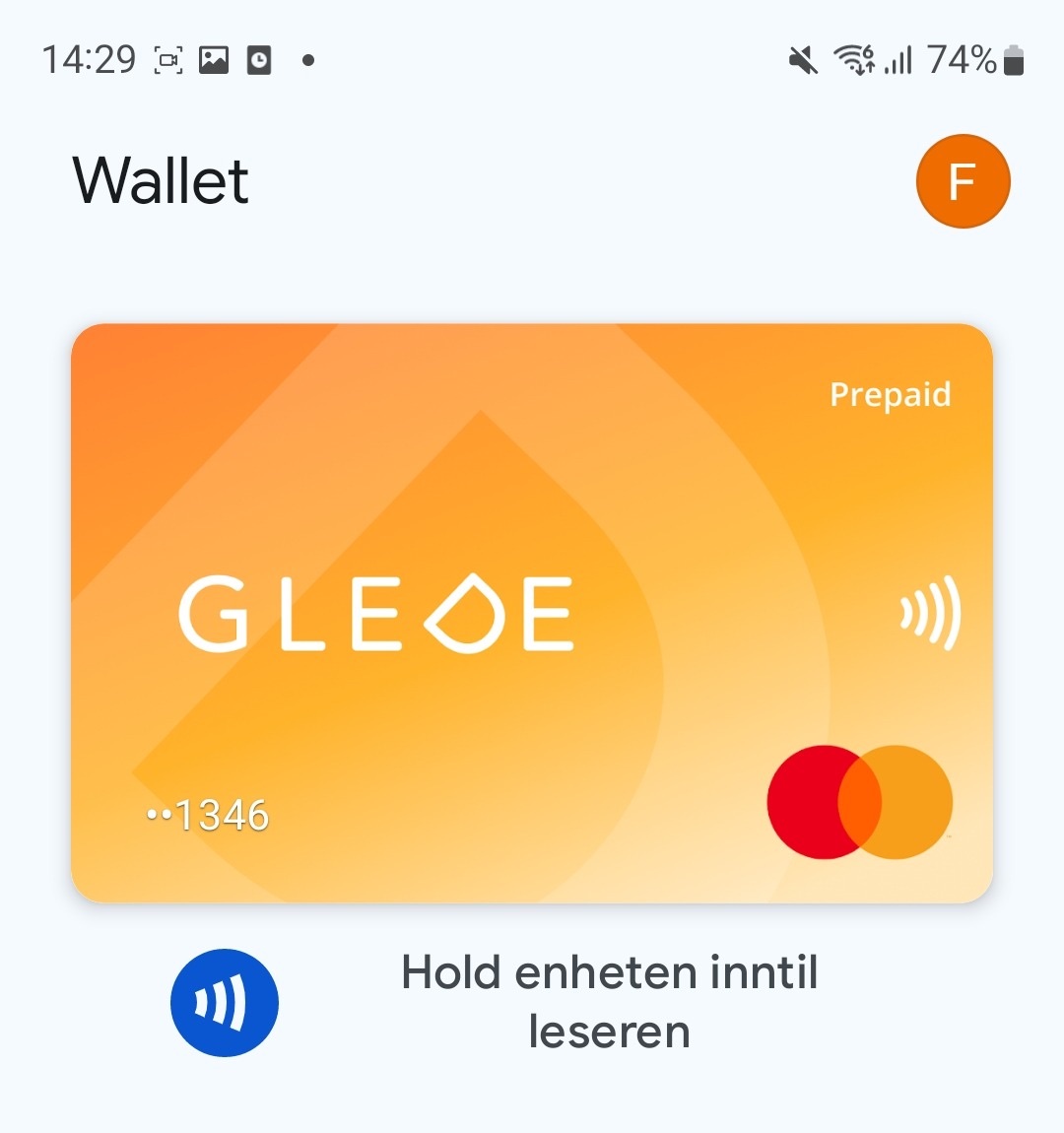
Rejected for "too little money" even if you have enough
Then you often pay with a different card than you think. Compare the last four digits of Google Wallet with the gift card that has a balance in the Glede app, and select the correct card before trying again.
When the terminal says that the payment has been rejected
Then Google Wallet and NFC work. Instead, check the balance, purchase amount and whether the store can accept the card in The card was rejected.
Remove the card and add it again
If the terminal is still unresponsive, remove the card from Google Wallet, restart the phone and add the card again from the Glede app. You won't lose any money — the balance is on the gift card, not in your wallet.
Adding the card to Google Wallet for the first time
Activate the gift card in the Glede app
The card must be activated before it can be added to Google Wallet.
Press "Add to Google Wallet"
The button is on the gift card in the Glede app.
Press "Continue" and accept the terms
You must scroll all the way down to the terms before you can approve.
Verify it's you
Use the code, fingerprint or face recognition on the phone.
You can pay online while you troubleshoot. Use the card number, expiry date and CVC from the Glede app — Google Wallet is not required.
Still having problems?
Contact us, and state which phone model you have, what is happening in the terminal and approximately when you tried. Then we can distinguish between a Wallet problem and a rejected card payment.
Did this answer your question?